Overclocking a 2018 MateBook X Pro with a DIY Heatsink Mod
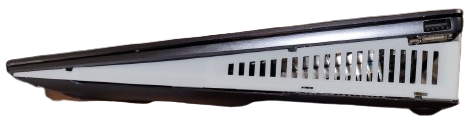
Overview
My 2018 Huawei MateBook X Pro has a single thin heat pipe and a small blower fan crammed into a fanless-looking wedge body — fine for a 15 W chassis at stock settings, but the moment I pushed the CPU past its factory limits, the cooling fell apart almost immediately. Package temperature would spike within seconds, and the clock collapsed to survive — often settling well under 1 GHz for the rest of whatever I was running.
Rather than accept that ceiling, I gave the chip somewhere to actually put the heat: a repurposed audio-amplifier heatsink, held onto the CPU's heat pipes by a two-part 3D-printed frame I modeled from measurements of the chassis's own screw bosses, fed by a duct that forces the stock fan's air straight through the fin stack. I closed the whole thing back up with printed side and back plates so it doesn't just sit open. With ThrottleStop handling the multiplier unlock, monitoring, and an undervolt, the laptop now holds 4.0 GHz sustained at an average of 85°C and a peak of 92°C — and every part of the mod keys into holes that were already in the stock chassis, so none of it is permanent.
Quick Facts
- Stock cooling let the CPU's sustained clock collapse to under 1.0 GHz; the mod holds a continuous 4.0 GHz under load.
- Core temperature under that load: 85°C average / 92°C peak, logged live with ThrottleStop.
- A repurposed heatsink is clamped over the stock heat pipes with a SolidWorks-modeled, 3D-printed frame keyed to the existing screw bosses — zero new holes.
- A generous layer of thermal paste couples the heatsink to the heat pipes — more contact-resistance drop per unit area, but a larger effective contact area overall, for a net gain in heat transfer.
- A manual ON/OFF switch, wired into the side of the chassis, lets me kill power to the large fan independently of the system.
- Publicly shared schematic and board-view files for this board revision were used to trace power rails before any connector was re-routed.
- Fully reversible: unscrew the frame, peel the printed plates, and it's a stock 2018 MateBook X Pro again.
The Problem: A 15 W Chassis Asked to Do More
The MateBook X Pro's cooling was never designed to dump much heat — one thin heat pipe, one small fan, a sealed aluminum shell. That's the failure mode this project set out to fix: not by fighting the throttling logic, but by giving it somewhere to actually put the heat.
Measuring the Chassis and Tracing the Board
Before drawing anything in CAD, I measured the chassis itself: the spacing, depth, and thread pitch of every screw boss already present in the stock frame, so that any new hardware could anchor to holes that already existed instead of adding its own.
For the electrical side, I pulled publicly shared schematic and board-view files for this exact board revision and cross-referenced them pin by pin — find a component on the schematic, trace it, then find the matching trace on the board view to see where it actually goes. That's also how I told VCC, VSUS, and the always-on VS rail apart before touching any connector, and how I later found a clean point to tap for the fan's manual kill switch.
Mounting a Heatsink It Was Never Built For
The core of the mod is a repurposed audio-amplifier heatsink — far larger than anything that could fit inside the original chassis — clamped directly onto the CPU's heat pipe. Holding it there is a two-part frame I modeled in SolidWorks from the screw-boss measurements: a base plate that mates directly into the existing heatsink screw holes, and a second piece that clamps down on top of the heatsink to hold it against the base plate and the pipes beneath it. The whole assembly comes off with the same screws that hold it on — no adhesive, no drilling.
Arctic thermal paste couples the heatsink to the pipe, applied generously enough to fill the imperfect contact between a hand-fit aluminum bar and a factory-formed copper pipe.
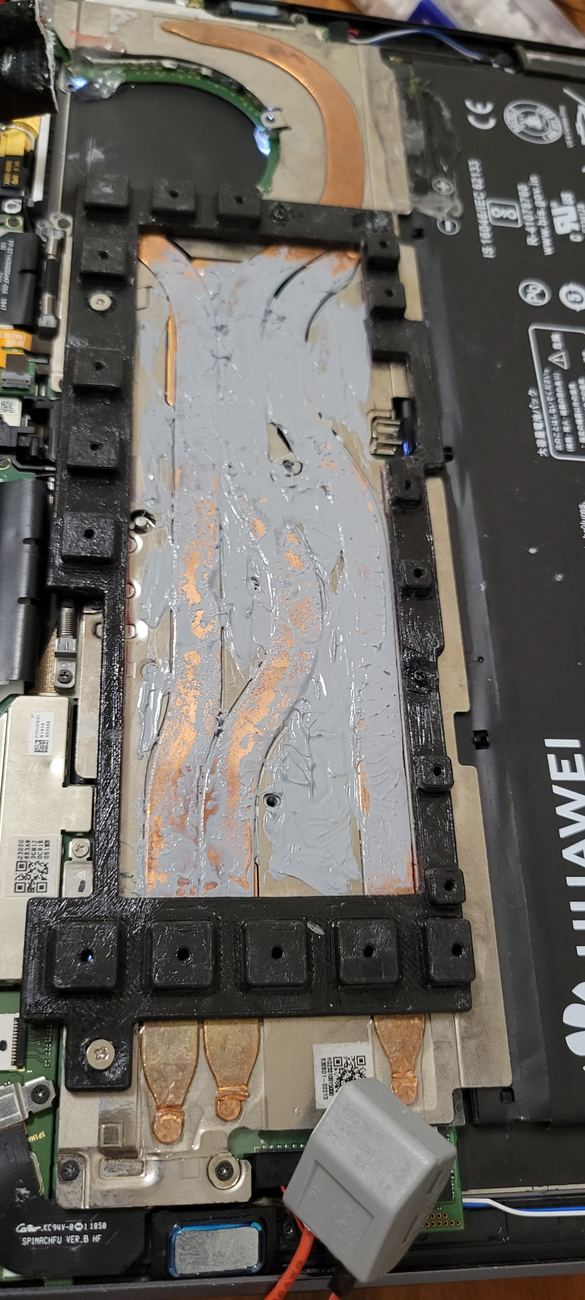
I used a lot more paste here than a textbook thermal-interface guide would recommend. A thick paste layer does add its own thermal drop across the paste itself — but it also lets the paste fully wet and fill the gap between a hand-fit aluminum bar and the factory-formed heat pipes, increasing the effective contact area the heat actually crosses through. In this case, more area more than made up for the extra drop.
Ducting the Airflow
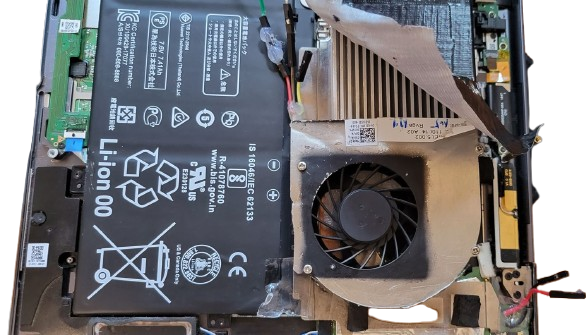
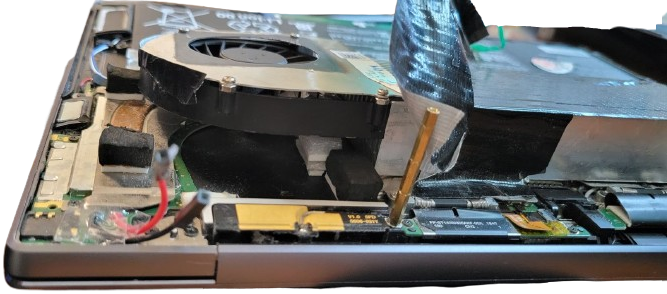
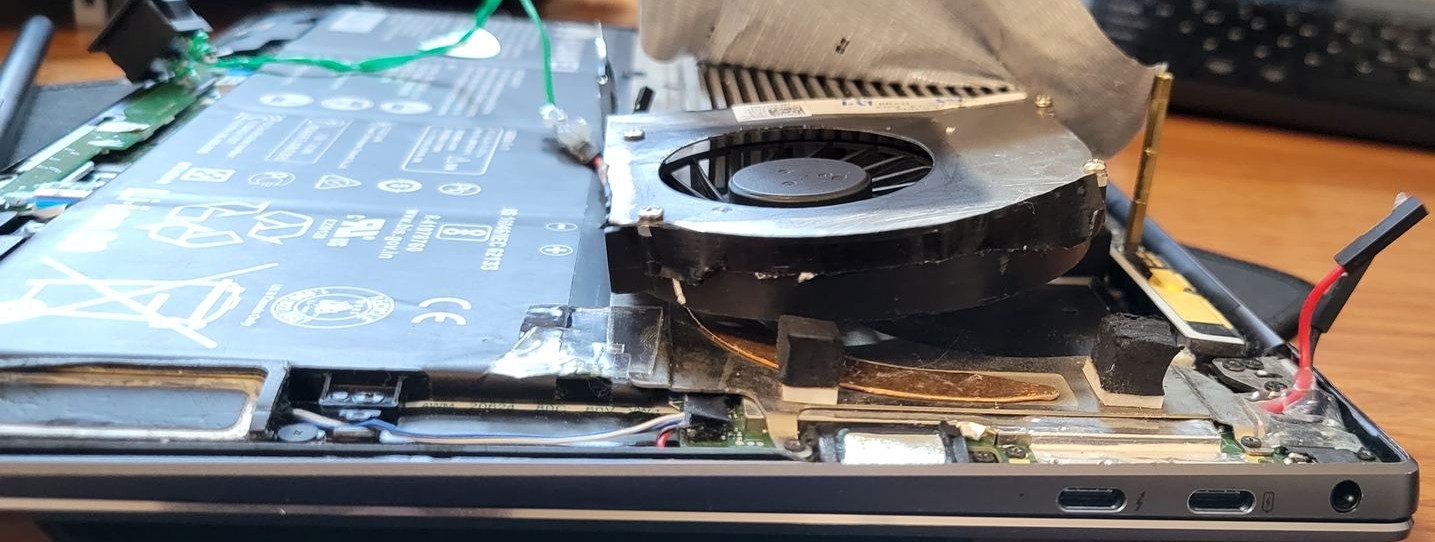
A bigger heatsink only helps if air actually moves through it. I repositioned the stock fan and wrapped it in a 3D-printed duct designed around the fin geometry, so intake air is forced straight through the fin stack instead of spilling around its edges — the difference between a heatsink that looks big and one that actually dissipates.
A Manual Kill Switch for the Fan
The audio-amplifier fan moves a lot more air than the laptop's own fan header was designed to switch, so I wired it to its own dedicated ON/OFF switch on the side of the chassis instead of tying it to the stock fan control. That gives me a hardware override to shut the big fan off completely when I don't need the extra cooling — or the extra noise.
Closing It Back Up
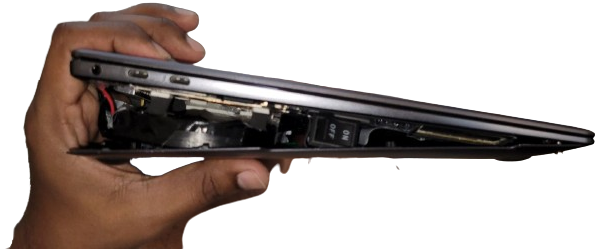
None of this fits inside a wedge designed around a single thin heat pipe, so the chassis no longer closes flush the way it did from the factory. Rather than leave it open, I re-enclosed the sides and back with 3D-printed plates and a vented fan cover, each one designed against the same stock screw bosses as the heatsink frame. Peel the plates and unscrew the frame, and the laptop is a stock 2018 MateBook X Pro again in well under ten minutes.
Tuning It with ThrottleStop
The mechanical work only creates headroom — ThrottleStop is what spent it. It unlocked the multiplier past the factory ceiling, monitored core and package temperature live during testing, and dialed in an undervolt: less voltage at a given clock means less heat to move for the same performance, which is what ultimately let the sustained clock and the temperature target land where they did, rather than one being sacrificed for the other.
Results
Both figures below were logged with ThrottleStop during sustained, all-core load — the condition that used to force the stock cooler to throttle within seconds.
| Metric | Stock cooling | With the mod |
|---|---|---|
| Sustained CPU clock | < 1.0 GHz (kept falling under load) | 4.0 GHz |
| Core temperature under load | Throttling within seconds | 85°C average / 92°C peak |
| Thermal interface | Stock heat pipe + fan | Repurposed heatsink + duct + Arctic paste |
| Chassis modifications | — | 0 — no drilling, no cutting, fully reversible |
Roughly 8°C of margin was deliberately kept in reserve at peak, relative to the ~100°C range where most 8th-gen mobile Intel CPUs begin throttling — the undervolt traded away a bit of clock ceiling for a buffer against throttling mid-task.
Living With the Bulk
None of this is free. Between the heatsink, the duct, and the enclosure plates, the laptop picked up real thickness and weight — it's no longer the slim, light machine Huawei shipped. What it became instead is a portable workhorse: I can run heavy, multicore Python jobs and other CPU-bound software on it without the clock collapsing partway through, which was the entire point of the mod. It's also visibly odd enough now that airport security has taken notice — I once got pulled aside at TSA and had to explain to an agent why my laptop had a fan bolted to the side of it. A fun conversation to have with a stranger in a blue uniform.
Printed Hardware
These are the actual print files from the build — the two-part mounting frame (modeled together with the heatsink it clamps down on), the fan duct cover, the two back-plate halves, and the side enclosure plate that close the chassis back up. Drag to rotate, scroll to zoom, or grab the raw STL for any piece below the viewer.