“Alexa, Start My Car” — Voice-Controlled Remote Start on a 2003 Lancer
🎥 Watch the Build — 2-Part Video Series


▶ Watch the full playlist on YouTube → · Jump straight to the live demo (Part 2, 11:27) →
Overview
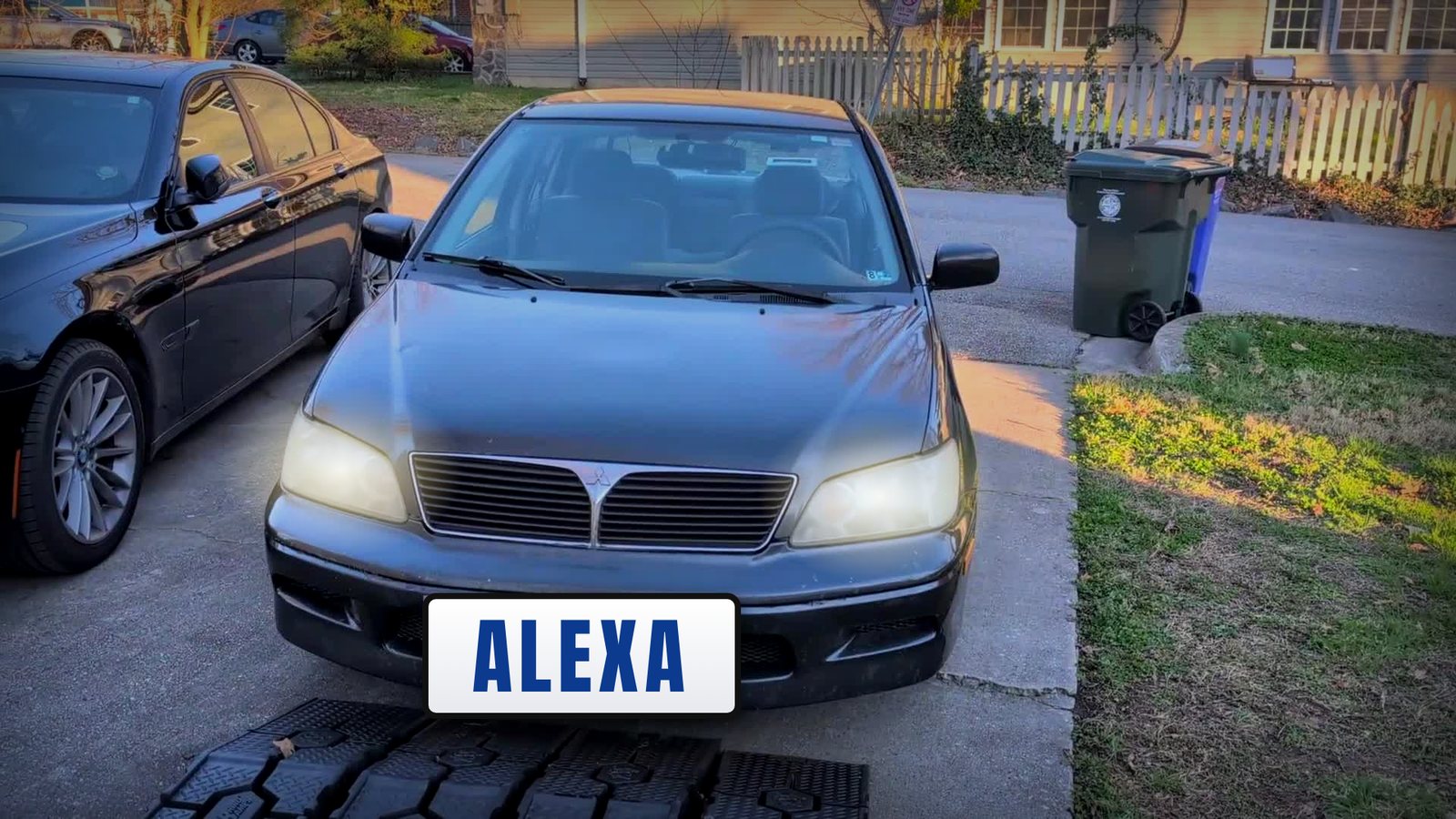
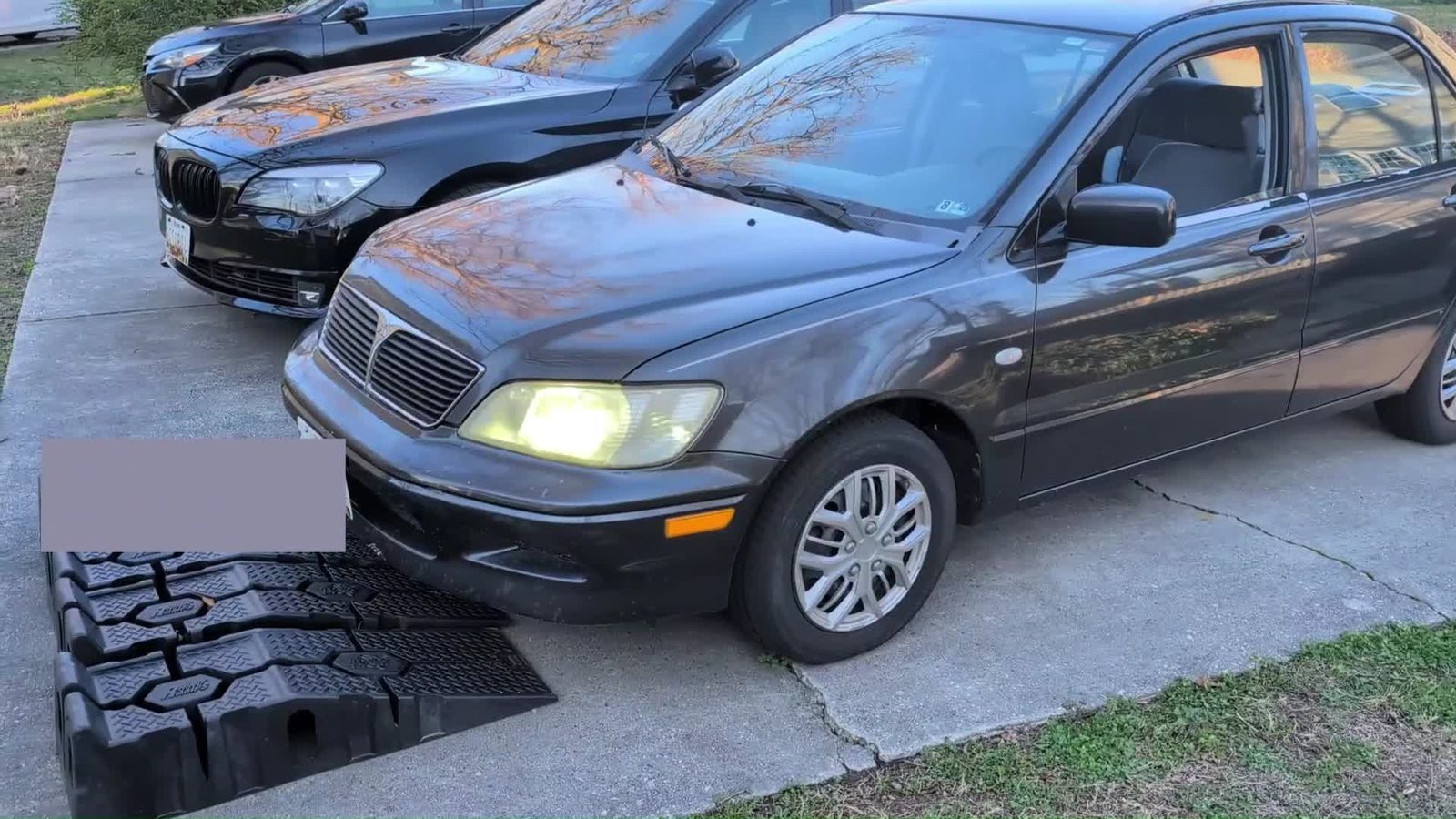
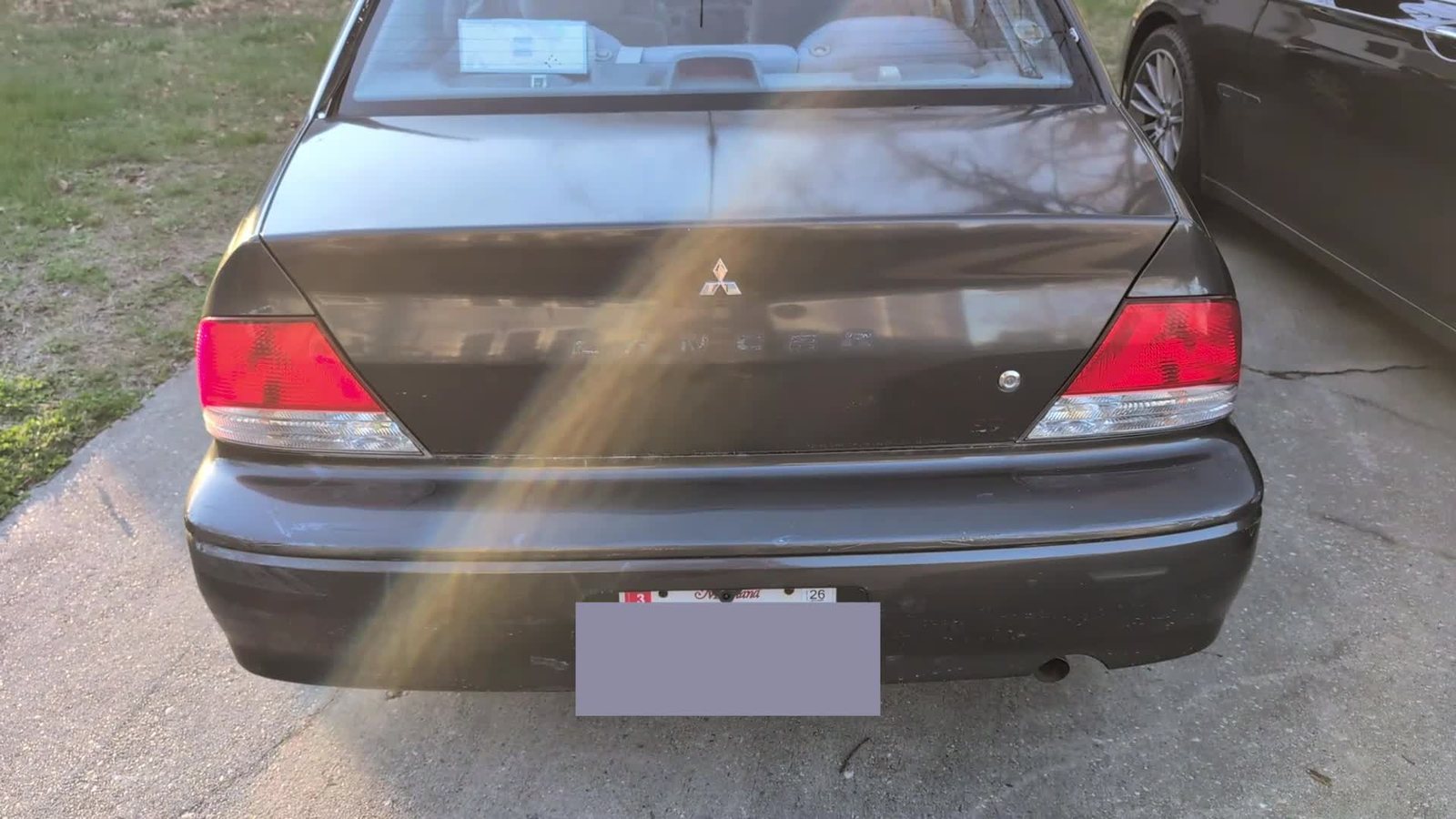
I added Amazon Alexa voice control to my 2003 Mitsubishi Lancer. From anywhere with an internet connection, I can say “Alexa, start my car”, lock or unlock the doors, or pop the trunk. The car itself has no smart features at all, so everything rides on two earlier builds: a cheap aftermarket remote start system that I reverse engineered, and the control board I had already installed in the car for my HVAC retrofit.
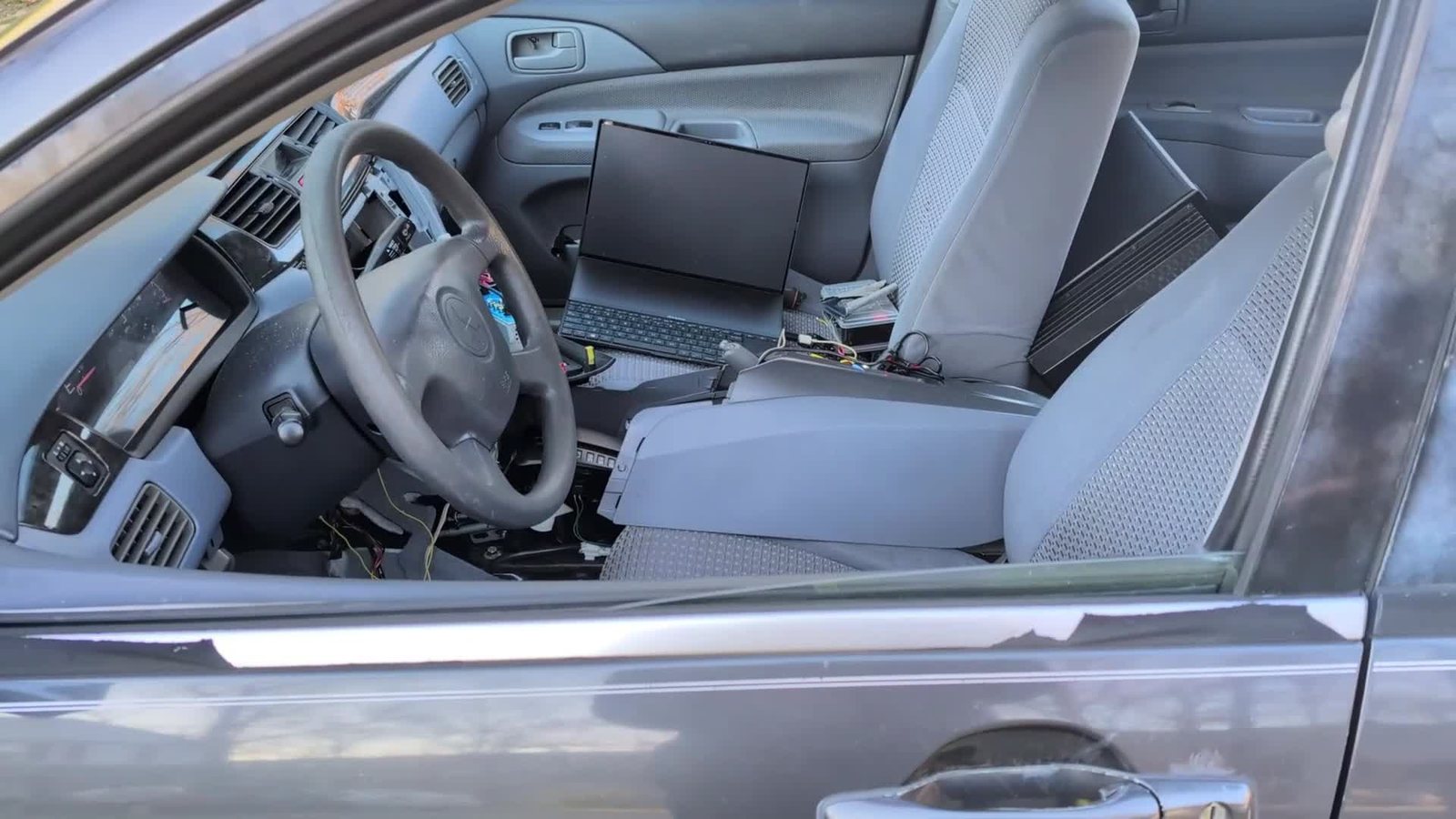
A NodeMCU (ESP8266) on that board injects key fob codes straight into the Banvie 1 remote start module, mimicking a button press on the real fob. The NodeMCU connects to Alexa through Sinric Pro, an IoT cloud backend, so I could focus on the hardware and integration instead of rebuilding Alexa skill infrastructure from scratch.
⚡ Quick Facts
- Voice commands: remote start / stop, lock / unlock, and trunk release
- Car: 2003 Mitsubishi Lancer, with a Banvie 1 remote start & keyless entry system (about $50 online)
- Controller: NodeMCU 0.9 (ESP-12 / ESP8266), programmed in the Arduino IDE
- Minimum hardware: the NodeMCU, a 12 V → 5 V buck converter, and one data wire (D1) into the Banvie
- Cloud: Sinric Pro free plan (3 devices) + the Sinric Pro Alexa skill
- Range: anywhere the NodeMCU has internet — home Wi-Fi in the driveway, or a mobile hotspot everywhere else
- Code: download the full Arduino sketch (.ino) or read it below
💡 Read This First
This build is the payoff of two earlier projects on the same car. Reverse-Engineering the Banvie 1 (5-part video series) shows how I decoded the key fob's codes and injected them from a NodeMCU — Part 5 is the direct prequel. The HVAC retrofit (2-part video series) shows how the control board is powered, mounted and wired into the car. This page picks up from there.
System Architecture
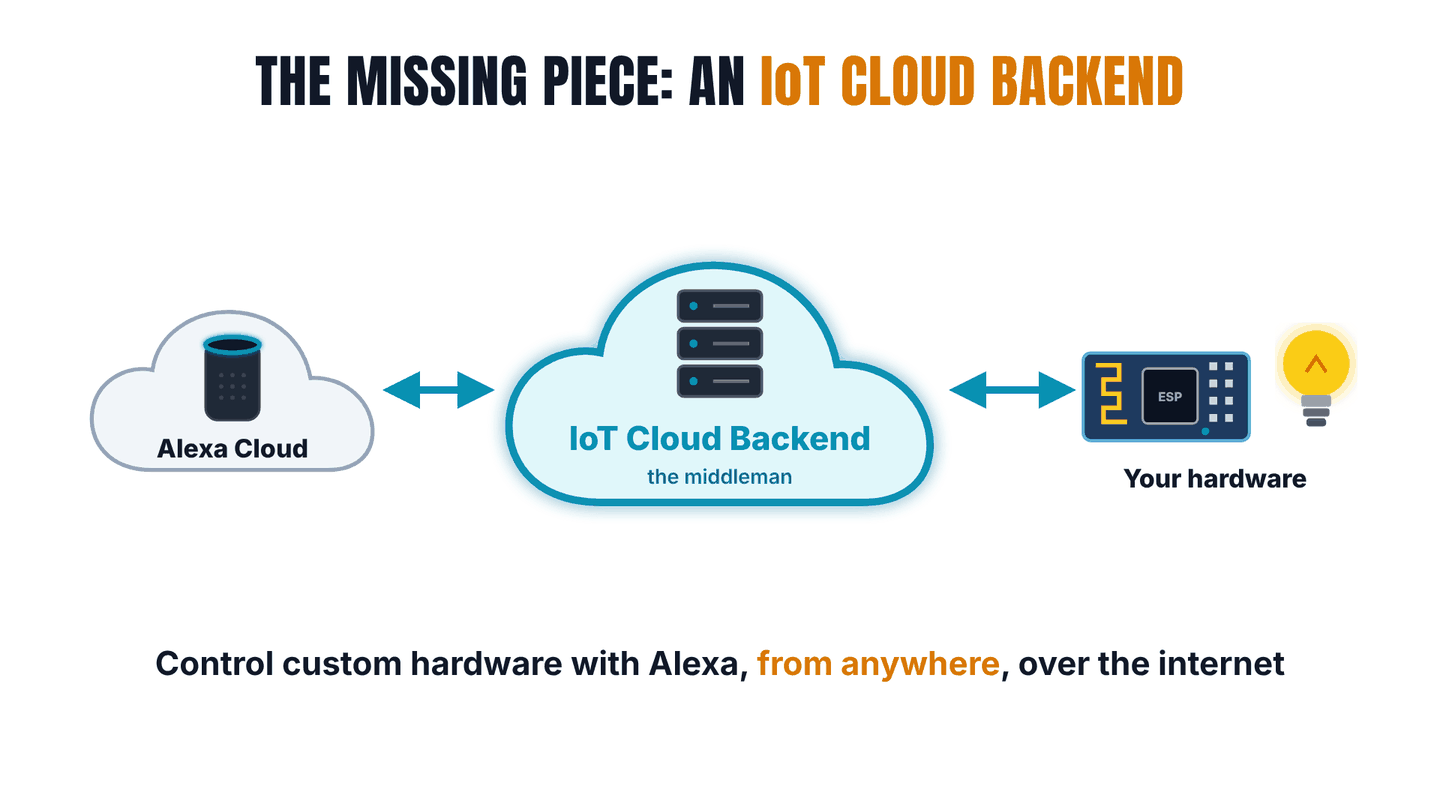
Every voice command makes a round trip through two clouds before it reaches the board in the car:
Your voice → Alexa Cloud → Sinric Pro Alexa skill → Sinric Pro cloud → NodeMCU (ESP8266) → Banvie 1 → Lancer
Why Alexa Needs an IoT Cloud Backend
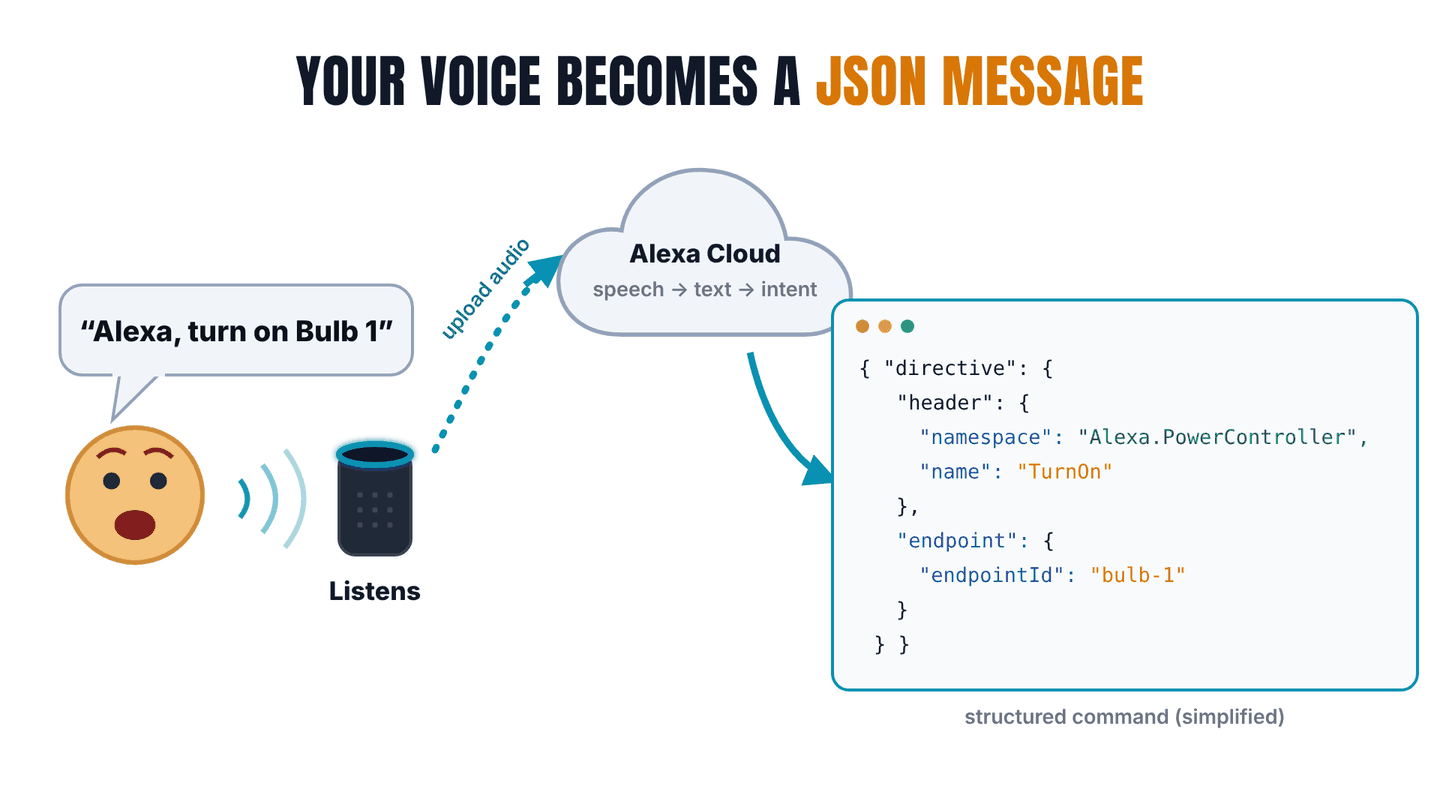
When you say “Alexa, turn on Bulb 1”, Alexa's servers turn your voice into a small, structured JSON directive: a namespace such as Alexa.PowerController, an action such as TurnOn, and an endpointId that names the device. But that message can't go straight to an ESP8266, for two reasons:
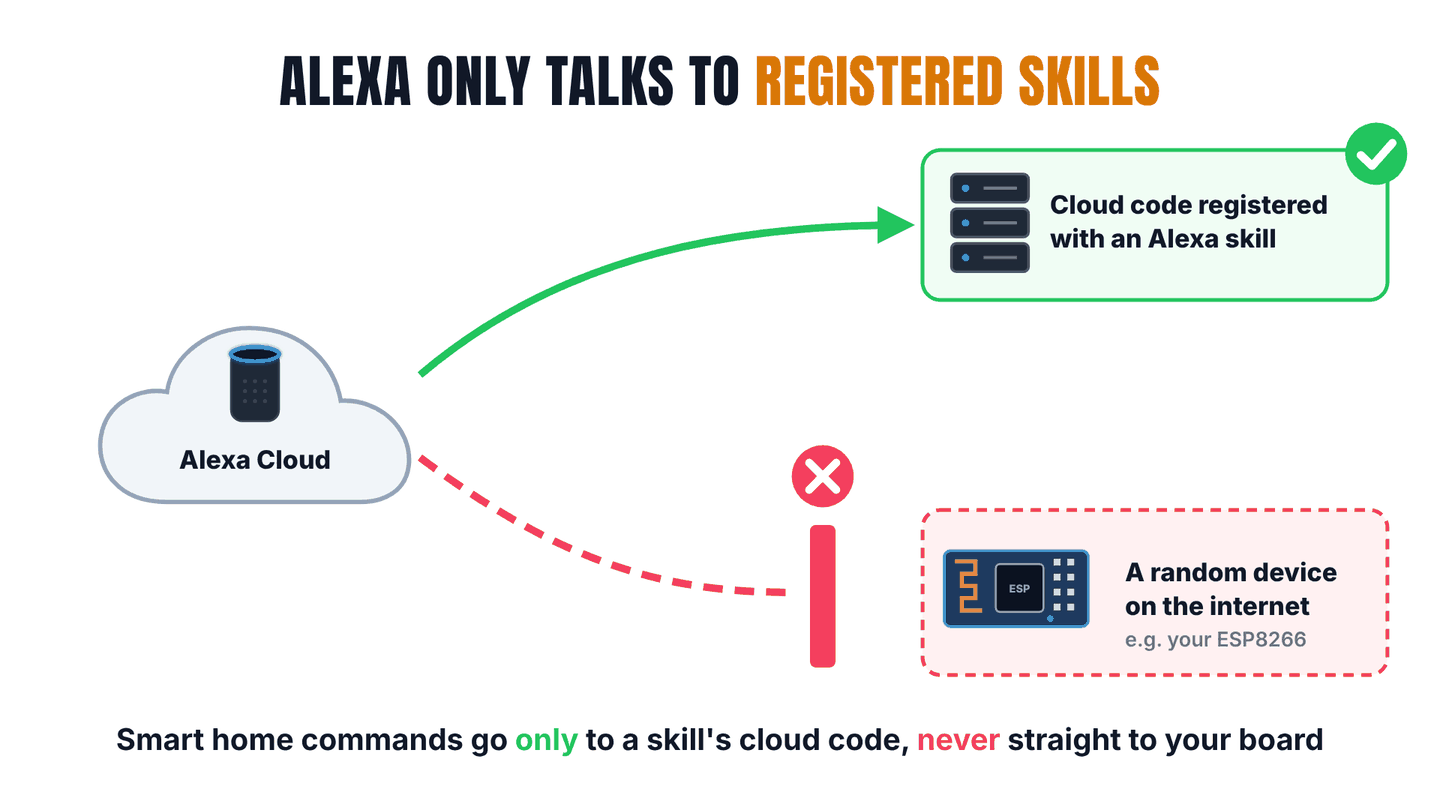
- Amazon only sends smart home directives to cloud code registered with an Alexa skill — never to a random device on the internet.
- The board is hidden behind a router or phone hotspot (NAT). Nothing on the internet can reach it unless the board opened the connection itself.
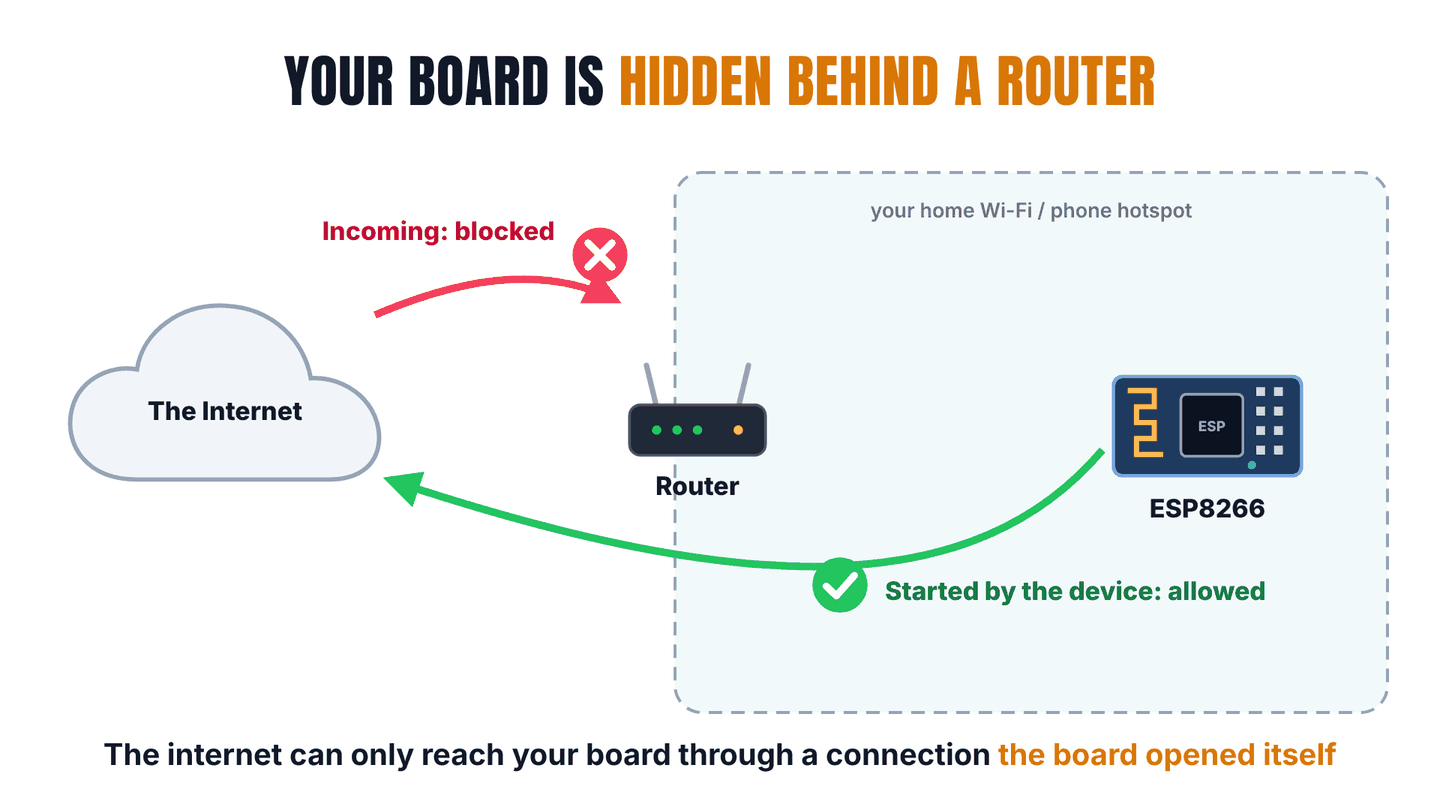
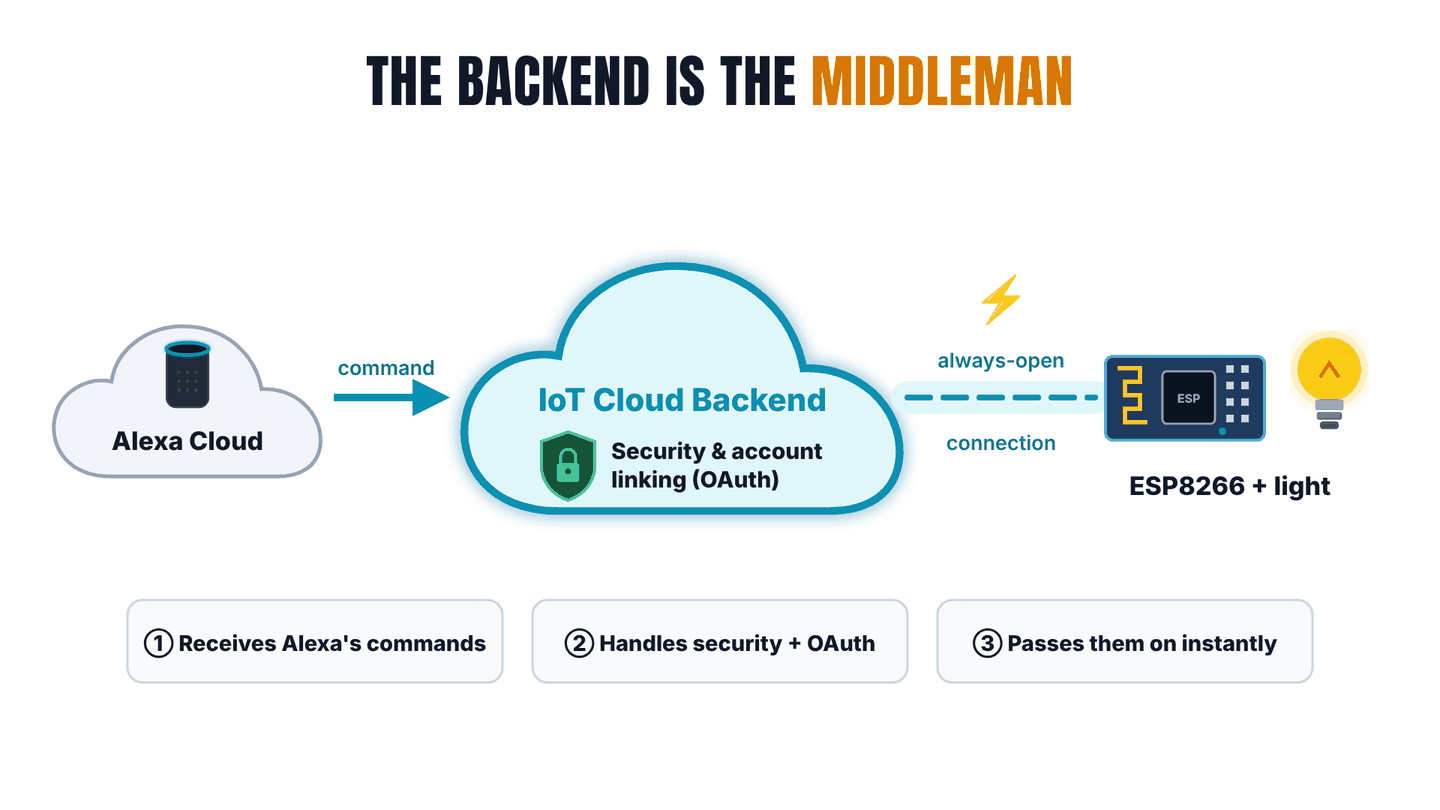
An IoT cloud backend solves both problems. It acts as the middleman: it receives Alexa's commands through its own published skill, handles security and OAuth 2.0 account linking (which ties your Alexa account to your account on the platform), and keeps an always-open connection to the microcontroller. The board dials out once and holds that connection open, so commands come back down it almost instantly.
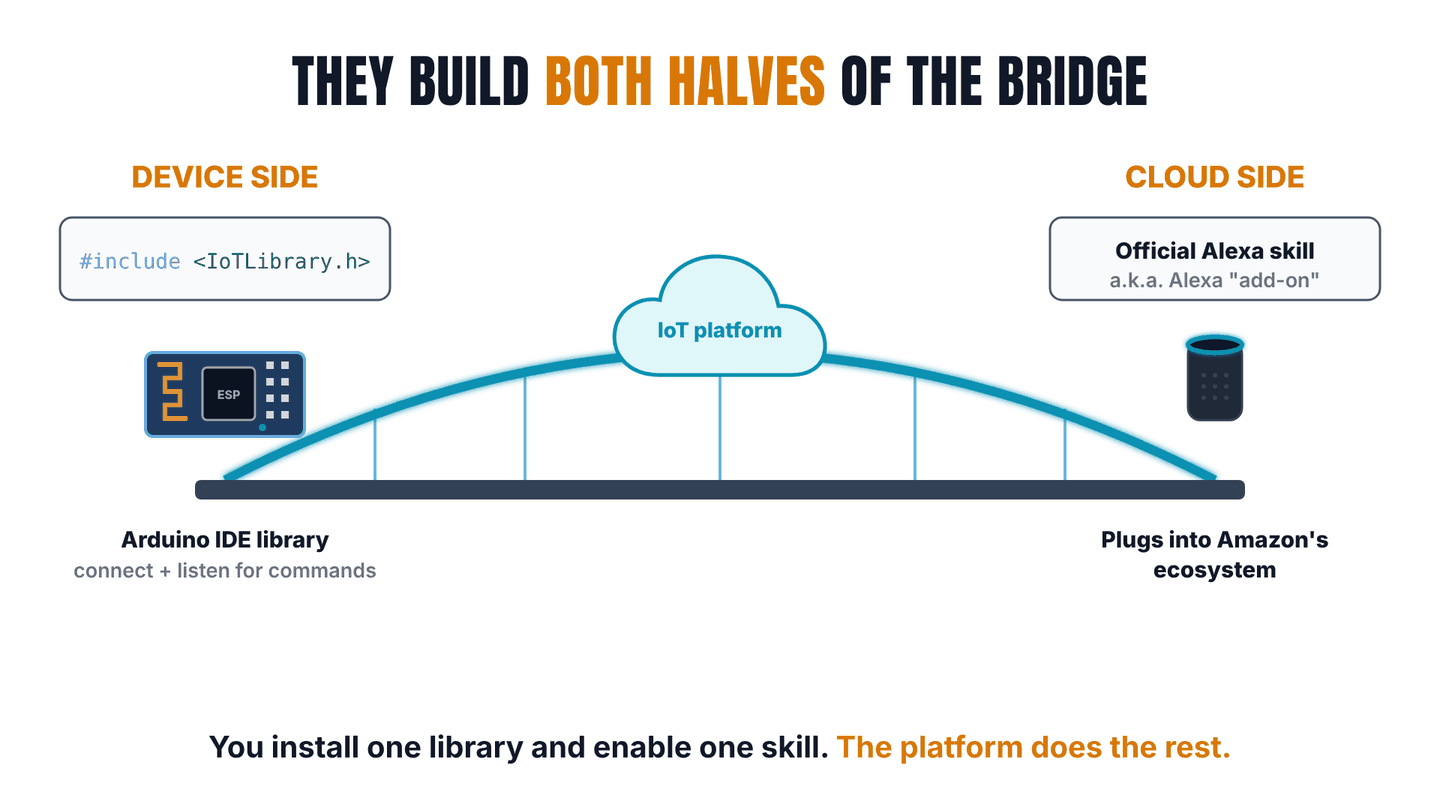
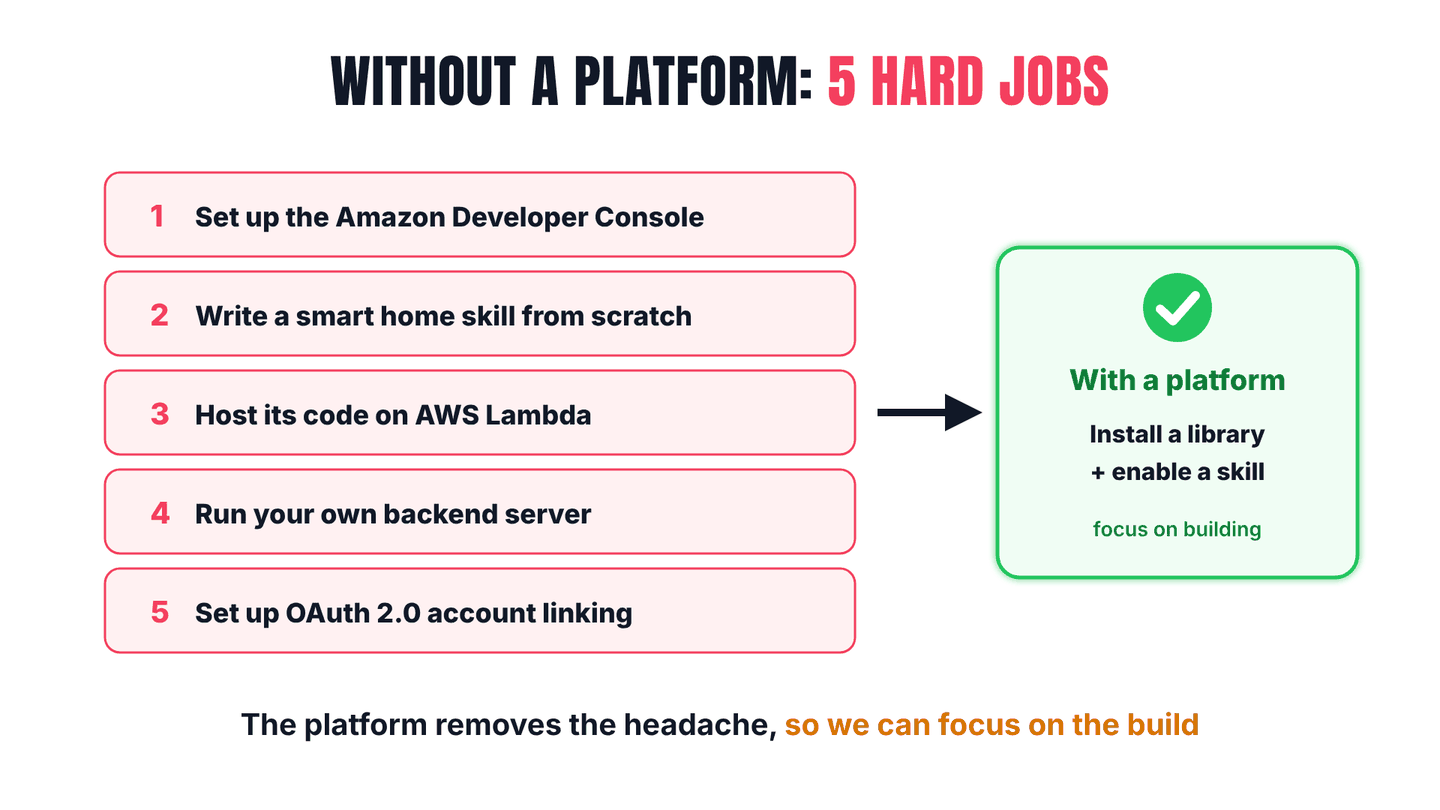
The convenient part is that these platforms build both halves of the bridge: an Arduino library for the device side, and an official Alexa smart home skill (Amazon now calls these “add-ons”) for the cloud side. Without one, I would have had to set up the Amazon Developer Console, write a smart home skill from scratch, host it on AWS Lambda, run my own backend server, and implement OAuth 2.0 account linking — all just to turn on a light bulb.
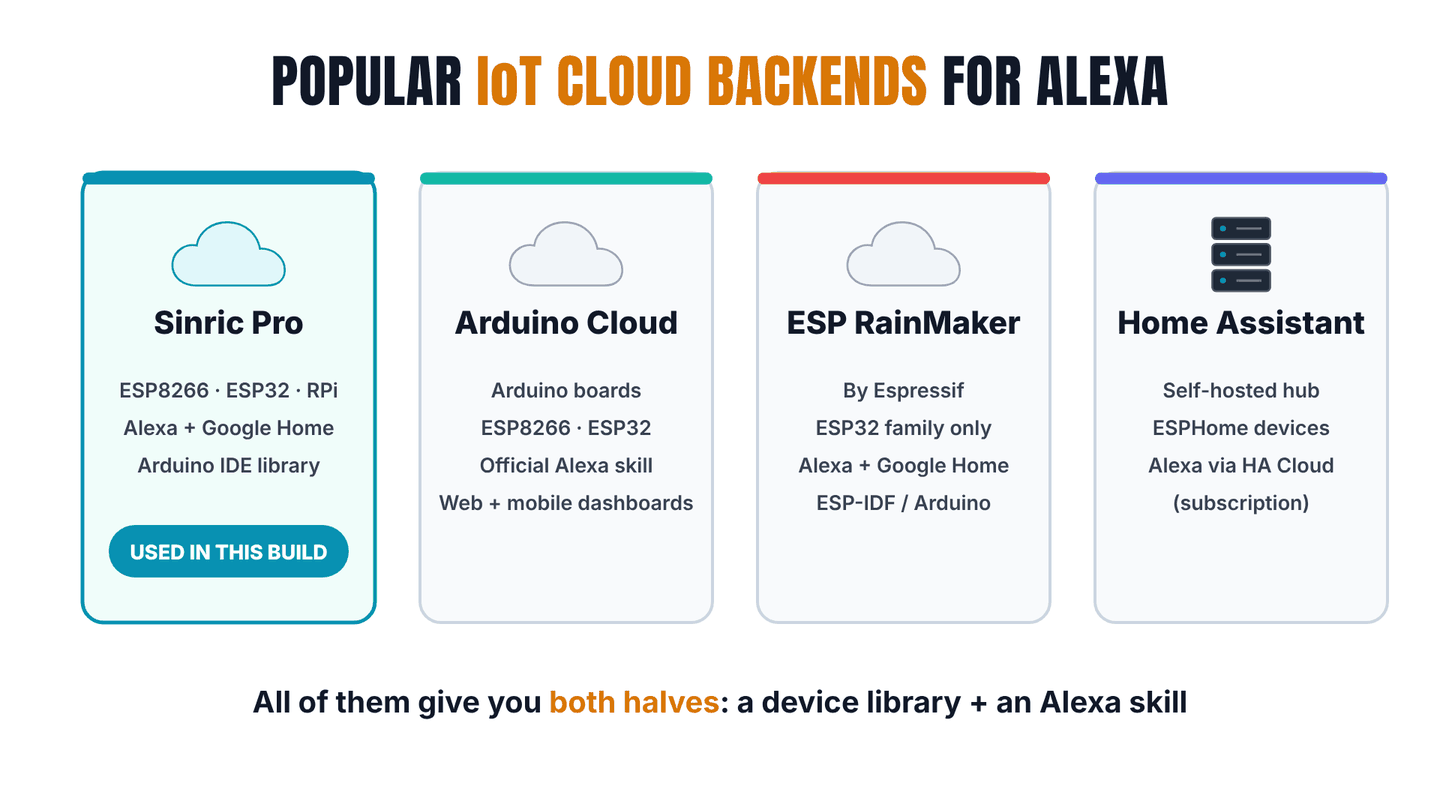
Choosing Sinric Pro: One Board, Three Virtual Devices
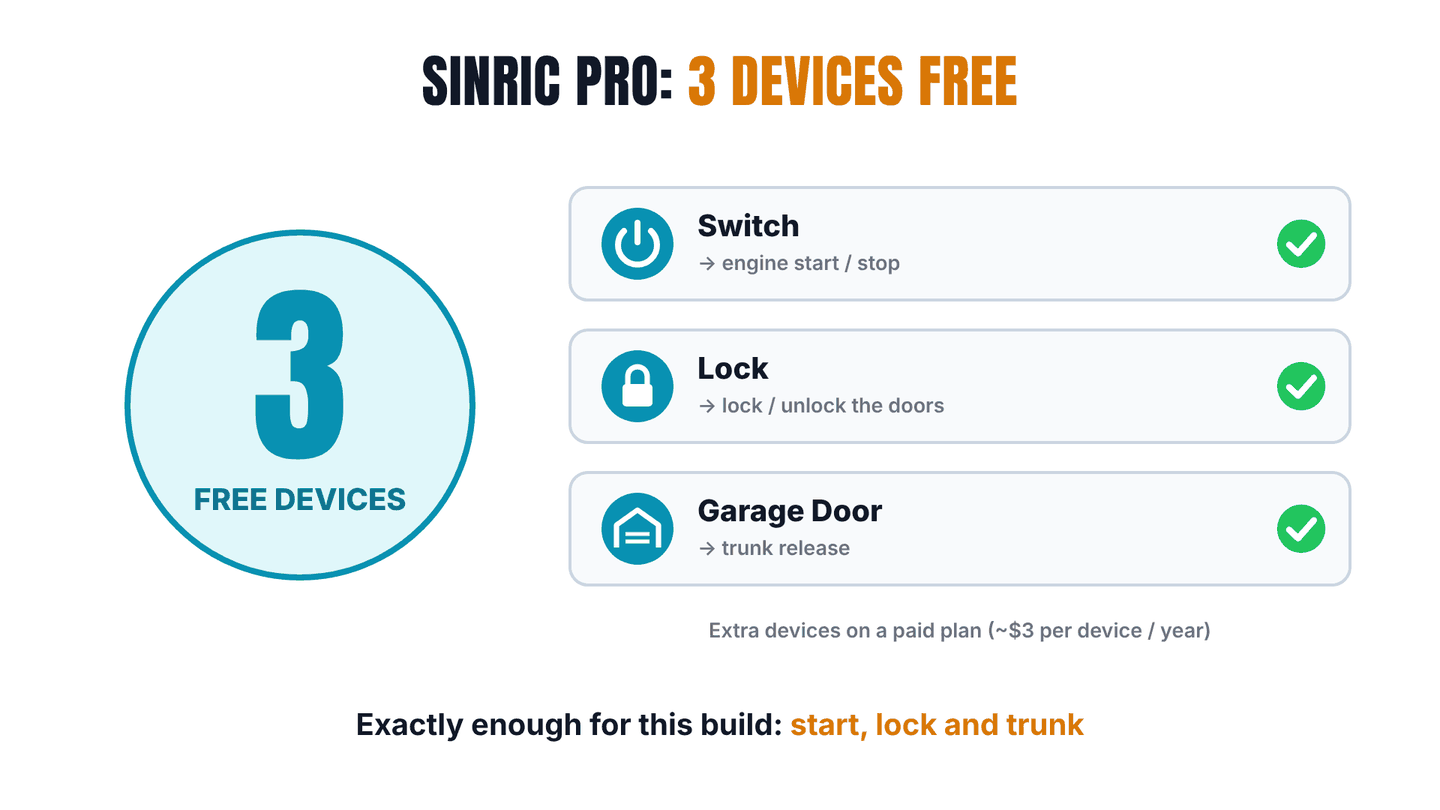
I went with Sinric Pro because its free plan covers three devices — exactly enough for this build. There's only one physical device (the NodeMCU), but on Sinric Pro each function is set up as its own virtual device, and each one counts toward that limit.
The device type matters more than it looks, because it decides which voice commands Alexa understands natively. A Switch knows “turn on” and “turn off”, but there's no “open the switch”. A garage door knows “open” and “close”, which fits a trunk far better. So I picked a type per function:
| Function | Sinric Pro device type | Natural voice command | Callback in the sketch |
|---|---|---|---|
| Engine start / stop | Switch | “Alexa, turn on / off my car” | onPowerStateCarEngineSwitch → startEngine() / stopEngine() |
| Door locks | Smart Lock | “Alexa, lock / unlock my car” | onLockStateCarLock → lockCar() / unlockCar() |
| Trunk | Garage Door | “Alexa, open the car trunk” | onDoorStateCarTrunk → releaseTrunk() (open only) |
Hardware
The board in the car is the same one from the HVAC retrofit, which also carries a motorized AC knob driver and a blend-door servo. None of that is needed here. The minimal setup is just:
- NodeMCU 0.9 (ESP-12, ESP8266) — Wi-Fi, the Sinric Pro connection, and the code injection.
- A 12 V → 5 V buck converter (2 A rating) fed from the car battery through a 2 A fuse.
- One data wire: NodeMCU pin
D1→ pin 1 of the Holtek microcontroller inside the Banvie, which is where the RF receiver normally delivers decoded key fob codes. - A common ground between the car, the buck converter, the NodeMCU and the Banvie.
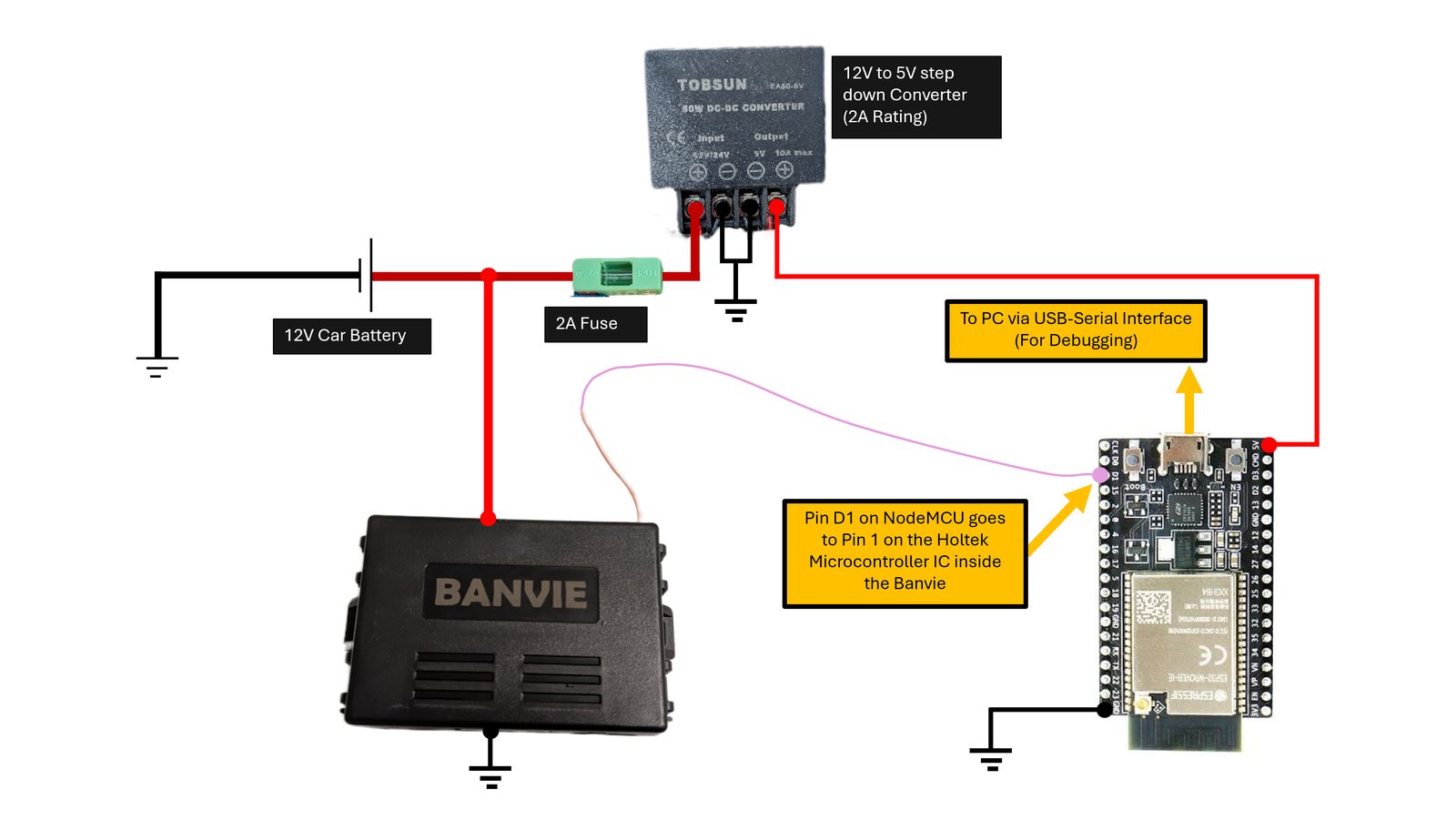
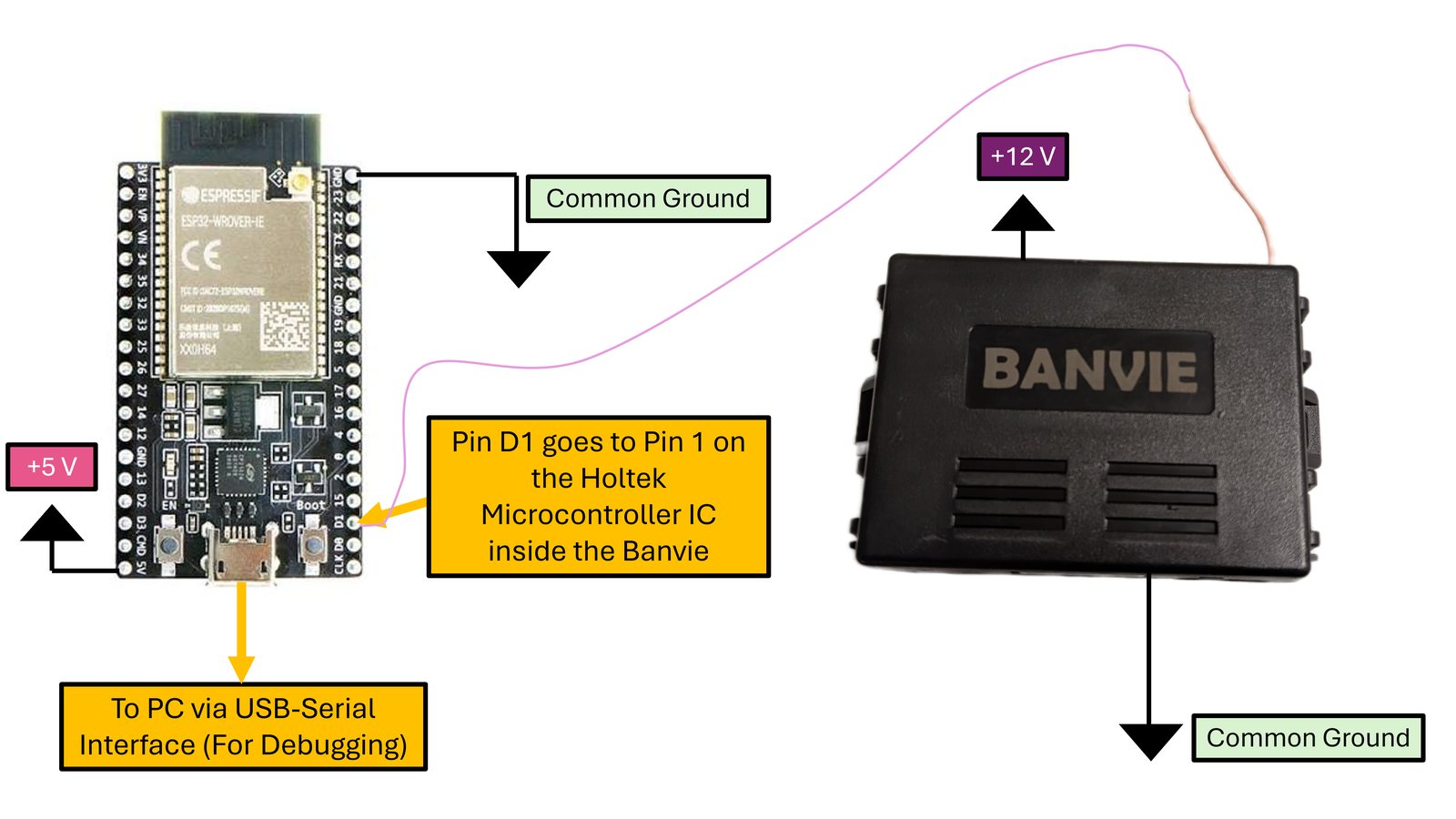
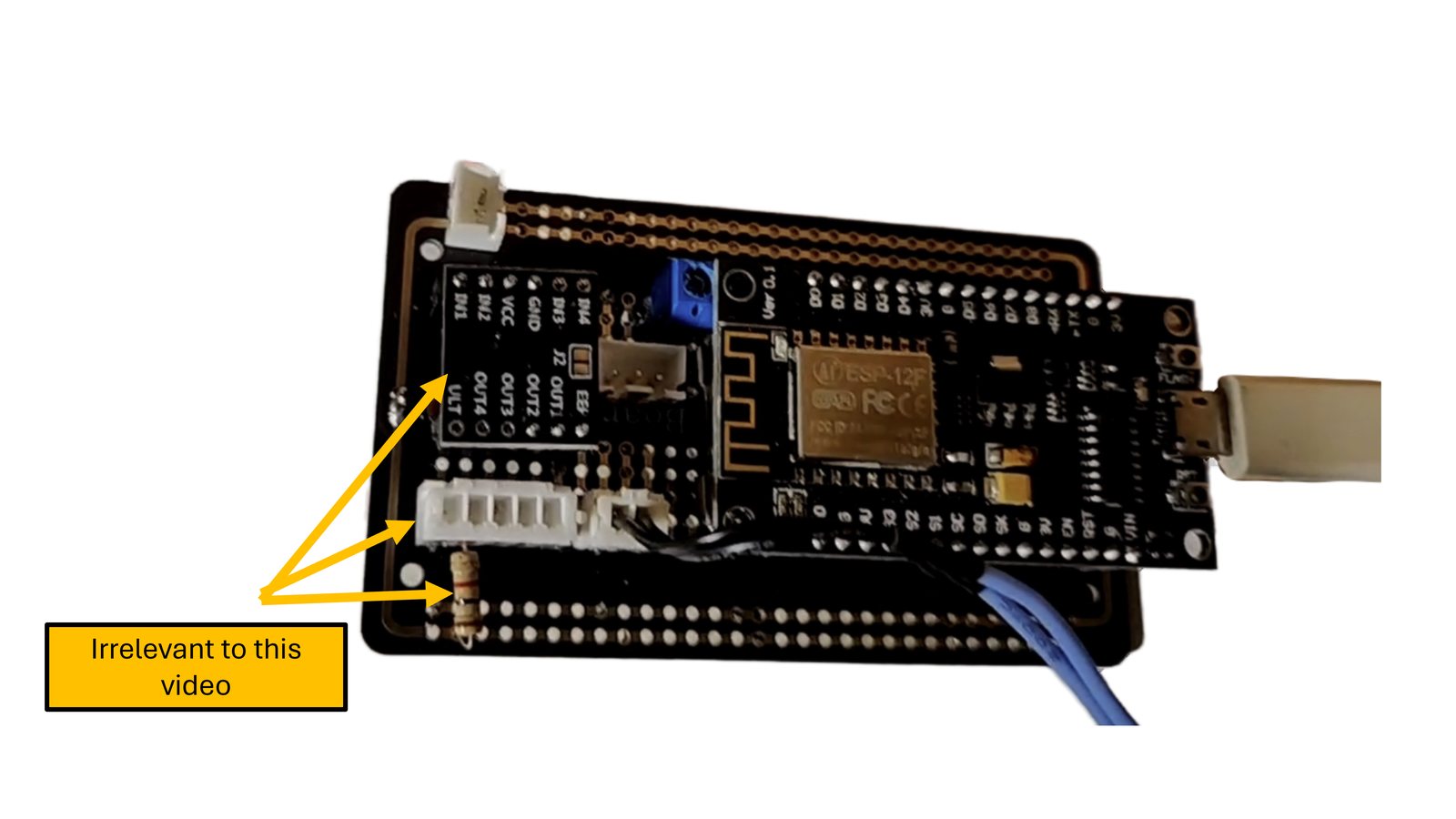
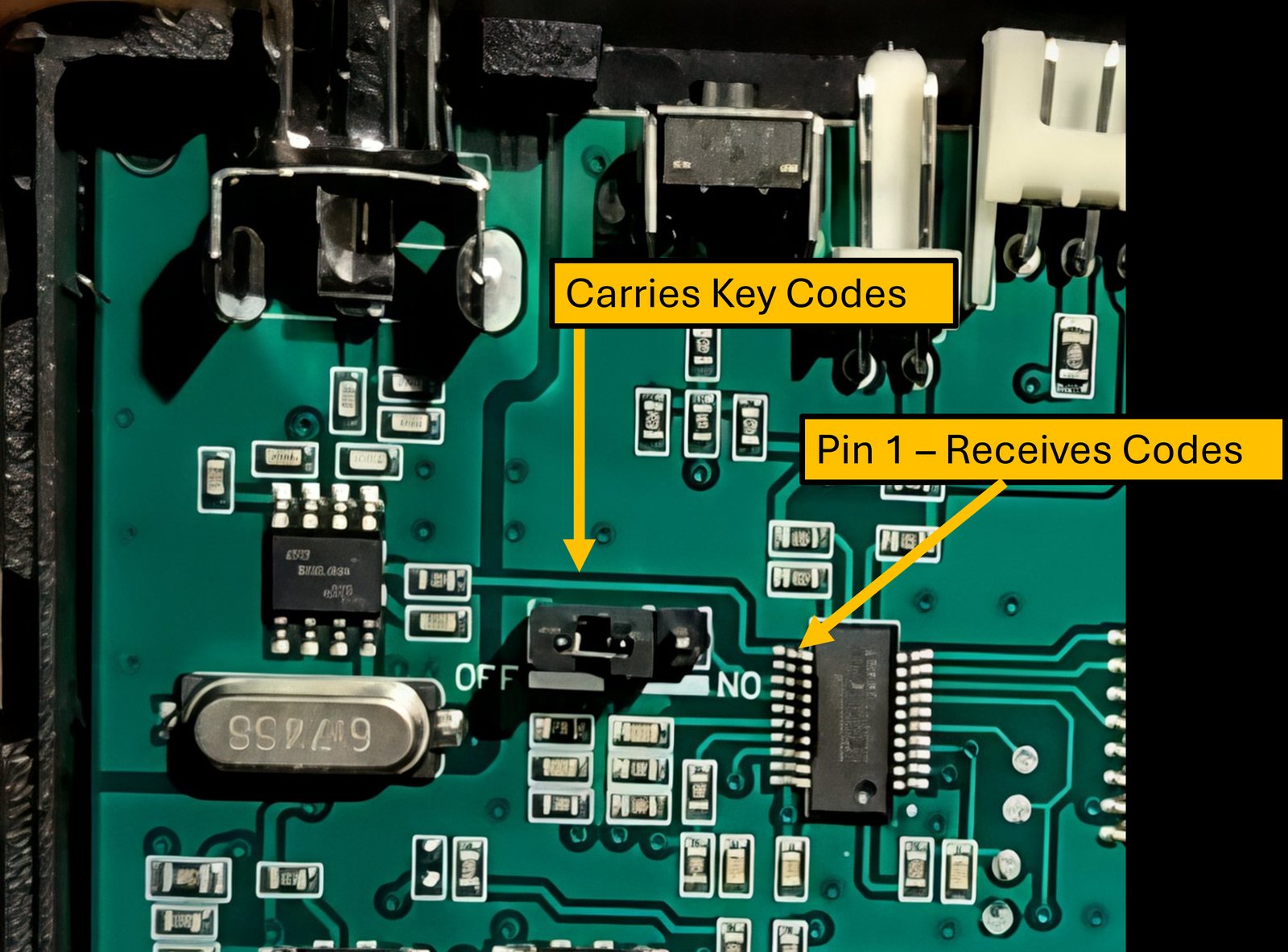
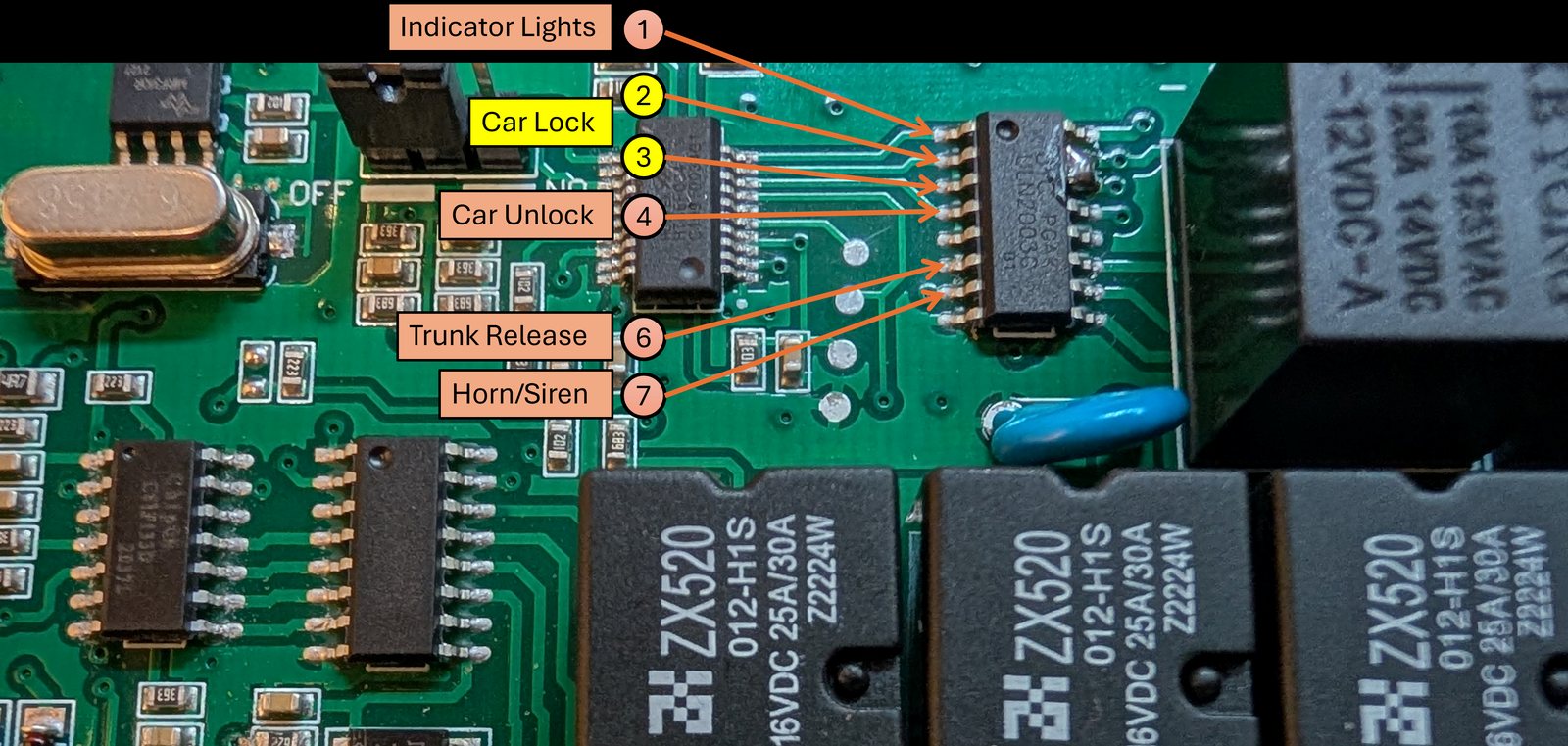
The Banvie's key fob sends fixed (non-rolling) 24-bit on-off-keyed codes. Replaying a code on Holtek pin 1 looks exactly like a real button press, and three unlock codes in a row trigger a remote engine start — all worked out in the Banvie reverse-engineering write-up.
Setting It Up
1. Sinric Pro portal
- Create credentials. The Credentials tab offers two kinds. An API Key is for your own code that sends commands to your devices without a voice assistant (for example, a custom phone app). An App Key + App Secret is what goes inside the IoT device itself, so it can connect and receive commands. The NodeMCU is the device, so it gets an App Key and Secret.
- Create the three virtual devices (Switch, Smart Lock, Garage Door) and copy each device ID into the sketch.
- Turn OFF “Restore Device State When Connect” for every device. This one matters — see Design Decisions & Gotchas.
2. Arduino IDE
- Select the board (NodeMCU 0.9 / ESP-12) and its COM port.
- Install the SinricPro library: Sketch → Include Library → Manage Libraries, search “SinricPro”.
- Fill in the App Key/Secret, the three device IDs, and the Wi-Fi credentials. Use home Wi-Fi if it only needs to work in the driveway, or a mobile hotspot to make it work anywhere.
3. Alexa app
- Search for the Sinric Pro skill and enable it.
- Sign in to link your Sinric Pro account (this is the OAuth account-linking step).
- Let Alexa discover devices — the engine switch, car lock and trunk appear as regular smart home devices.
Code Walkthrough
The sketch has three layers: the Banvie interface (pulse trains that mimic the key fob), the Wi-Fi and Sinric Pro setup, and three callbacks that connect Alexa commands to Banvie actions.
Banvie interface
The constants describe the fob's signal: 25 positive pulse edges (24 bits), 10 repeats per pulse train, a 1500 µs bit period with 1200 µs / 300 µs long and short pulses, a 4 s hold for trunk release, and a 500 ms step delay for the start sequence. Four bit arrays hold the lock, muted lock, unlock and trunk release codes. issuePulses() switches D1 to OUTPUT only while sending, then back to a floating INPUT so the original fob keeps working. All of this is covered in depth in Banvie Part 5.
setup()
setupWiFi()disables Wi-Fi sleep (WIFI_NONE_SLEEP) for the fastest response, enables auto-reconnect, and waits forWL_CONNECTED.setupSinricPro()creates the three device objects from their IDs, attaches a callback to each, adds connect/disconnect debug messages, setsrestoreDeviceStates(false), and callsSinricPro.begin(APP_KEY, APP_SECRET)to open the connection to the cloud.setupBanvieSystem()leaves the data pin floating.
Callbacks
Each callback receives the device ID and the requested state. Because every callback is mapped to exactly one device, the ID can be ignored. Each callback must return true so Sinric Pro — and Alexa — know the request was handled.
bool onLockStateCarLock(const String &deviceId, bool &state) {
  // state == true  -> lock requested
  // state == false -> unlock requested
  if (state) lockCar();
  else       unlockCar();
  return true;   // tell Sinric Pro (and Alexa) the command was handled
}

bool onDoorStateCarTrunk(const String &deviceId, bool &state) {
  // Garage Door logic is inverted: false = OPEN requested, true = CLOSE requested
  if (!state) releaseTrunk();   // no motorized trunk closing, so only "open" is handled
  return true;
}
loop()
SinricPro.handle() services the cloud connection on every pass. A small serial interface (L, T, U, M for lock, trunk, unlock and muted lock) makes it easy to test the Banvie side from a laptop without going through Alexa.
Full Arduino sketch
⬇ Download alexa_car_control.ino — credentials and device IDs are placeholders; fill in your own.
Show the full sketch
// "Alexa, Start My Car" - Voice-controlled remote start for a 2003 Mitsubishi Lancer
// NodeMCU (ESP8266) + hacked Banvie 1 remote start system + Sinric Pro + Amazon Alexa
// Kasun Pathirage / Dumbledore's Navy - https://www.youtube.com/@DumbledoresNavy
//
// Before uploading: fill in your own Sinric Pro App Key/Secret, the three device IDs,
// and your Wi-Fi (or mobile hotspot) credentials below. Board: NodeMCU 0.9 (ESP-12).
// Library: "SinricPro" (Arduino IDE > Sketch > Include Library > Manage Libraries).
// Also turn OFF "Restore Device State When Connect" for every device on the Sinric Pro portal.

#include <Arduino.h>
#include <ESP8266WiFi.h>
#include <SinricPro.h>  // The main SinricPro library

// The libraries corresponding to the individual SinricPro Devices that we plan to use.
#include "SinricProSwitch.h"
#include "SinricProLock.h"
#include "SinricProGarageDoor.h"

////////////////////////////////////////////////////////////////////////////
// SINRICPRO VARIABLES

#define APP_KEY "YOUR-APP-KEY"  // Sinric Pro portal > Credentials > New App Key and Secret
#define APP_SECRET "YOUR-APP-SECRET"

// Each device on Sinric Pro needs a unique ID.
// This way Alexa, the Sinric Pro cloud backend, and the microcontroller know which device a message was intended to.
#define CAR_ENGINE_ID "YOUR-ENGINE-SWITCH-DEVICE-ID"
#define CAR_LOCK_ID "YOUR-LOCK-DEVICE-ID"
#define CAR_TRUNK_ID "YOUR-GARAGE-DOOR-DEVICE-ID"

////////////////////////////////////////////////////////////////////////////
// BANVIE SYSTEM CONTROL VARIABLES
#define banvie_pin D1

volatile long startTime = 0;
const int num_positive_pulses = 25; // 25 positive pulse edges because we want 24 pull downs.
const int num_repeats_per_train = 10;
const int trunk_release_key_press_hold_time_s = 4;

const uint16_t period_us = 1500;
const uint16_t long_pulse_length_us = 1200;
const uint16_t short_pulse_length_us = period_us - long_pulse_length_us;
const int car_start_step_delay_ms = 500;

bool lockPulseWidths[num_positive_pulses] = {1,0,0,1,0,0,1,1,0,0,1,0,1,0,0,0,0,0,0,0,0,0,0,1,0};  // Lock sequence
bool mutedLockPulseWidths[num_positive_pulses] = {1,0,0,1,0,0,1,1,0,0,1,0,1,0,0,0,0,0,0,0,0,1,0,0,0};  // Muted Lock sequence
bool unlockPulseWidths[num_positive_pulses] = {1,0,0,1,0,0,1,1,0,0,1,0,1,0,0,0,0,0,0,0,0,0,1,0,0};  // Unlock sequence
bool trunkReleasePulseWidths[num_positive_pulses] = {1,0,0,1,0,0,1,1,0,0,1,0,1,0,0,0,0,0,0,0,1,1,0,0,0};  // Trunk release sequence

////////////////////////////////////////////////////////////////////////////
// WIFI SSID AND PASSWORSD
#define WIFI_SSID "YOUR-WIFI-OR-HOTSPOT-SSID"
#define WIFI_PASS "YOUR-WIFI-OR-HOTSPOT-PASSWORD"

////////////////////////////////////////////////////////////////////////////
// BANVIE SYSTEM CONTROL FUNCTIONS

void issuePulses(bool pulseWidths[], int num_positive_pulses){
  pinMode(banvie_pin, OUTPUT);
  digitalWrite(banvie_pin, LOW);

  for (int r = 0; r < num_repeats_per_train; r++){
    for (int i = 0; i < num_positive_pulses; i++) {

      uint16_t highTime = pulseWidths[i] == 1? long_pulse_length_us: short_pulse_length_us;
      uint16_t lowTime = pulseWidths[i] == 1? short_pulse_length_us: long_pulse_length_us;

      // HIGH portion
      digitalWrite(banvie_pin, HIGH);
      startTime = micros();
      while ((micros() - startTime) < highTime){};


      // LOW portion
      digitalWrite(banvie_pin, LOW);
      startTime = micros();
      while ((micros() - startTime) < lowTime){};
    }

    delay(12);  // gap between trains
  }
  pinMode(banvie_pin, INPUT);

}

void lockCar(){
  Serial.println("Locking car");
  issuePulses(lockPulseWidths, num_positive_pulses);
}

void mutedLockCar(){
  Serial.println("Muted Lock Activated");
  issuePulses(mutedLockPulseWidths, num_positive_pulses);
}

void unlockCar(){
  Serial.println("Unlocking Car");
  issuePulses(unlockPulseWidths, num_positive_pulses);
}

void releaseTrunk(){
  Serial.println("Releasing Trunk Door");
  long trunk_start_time = millis();
  while ((millis() - trunk_start_time) < (trunk_release_key_press_hold_time_s * 1000)){
    issuePulses(trunkReleasePulseWidths, num_positive_pulses);
  }
}

void startEngine(){
  Serial.println("Starting car");
  issuePulses(lockPulseWidths, num_positive_pulses);
  delay(car_start_step_delay_ms);
  issuePulses(unlockPulseWidths, num_positive_pulses);
  delay(car_start_step_delay_ms);
  issuePulses(unlockPulseWidths, num_positive_pulses);
  delay(car_start_step_delay_ms);
  issuePulses(unlockPulseWidths, num_positive_pulses);
  delay(car_start_step_delay_ms);
}

void stopEngine(){
  Serial.println("Stopping car");
  issuePulses(unlockPulseWidths, num_positive_pulses);
  delay(car_start_step_delay_ms);
  issuePulses(unlockPulseWidths, num_positive_pulses);
  delay(car_start_step_delay_ms);
  issuePulses(unlockPulseWidths, num_positive_pulses);
  delay(car_start_step_delay_ms);
}

void handleSerialInputForBanvieSystem(char c){

    if (c == 'L') {
      lockCar();
    }
    else if (c == 'T') {
      releaseTrunk();
    }
    else if (c == 'U') {
      unlockCar();
    }
    else if (c == 'M') {
      mutedLockCar();
    }
}

////////////////////////////////////////////////////////////////////////////
// WIFI AND ALEXA CONTROL FUNCTIONS

// Each callback function below receives two inputs, first, a deviceID, and the state of the device depending on the command the callback was linked to.
// We do not need to worry about the deviceID because each callback only handles state changes from one device. That is, we have a one to one mapping between each callback function and device.
// After every successful callback, the bool TRUE must be returned so that the cloud back end knows that the request was handled, and conveys that to Alexa too.

bool onPowerStateCarEngineSwitch(const String &deviceId, bool &state) {
  // The car engine was configured as a switch device, and this callback was attached to the SinricPro's 'onPowerState' method for the SinricProSwitch devices.
  // When the power state of the switch flips, this method is called.
  // If the switch is ON, the state will be True, and if it is OFF, it will be False.
  Serial.println("Device " + String(deviceId.c_str()) + " is " + (state?"on":"off"));

  // If the switch power state is ON, trigger the startEngine sequence.
  if (state) {
    startEngine();
    return true;
  }
  else{  // If the switch power state is OFF, trigger the stopEngine sequence
    stopEngine();
    return true;
  }
}

bool onLockStateCarLock(const String &deviceId, bool &state) {
  // The car lock was configured as a generic smart lock device, and this callback was attached to the SinricPro's 'onLockState' method for the SinricProLock devices.
  // When the lock state toggles, this method is called.
  // If the command requests the lock to be locked, the state will be True, and if it is to be unlocked, the state will be False.

  Serial.println("Device " + String(deviceId.c_str()) + " is " + (state?"locked":"unlocked"));

  // Based on the state, trigger either the locking or unlocking sequences.
  // Return true once done.
  if (state){
    lockCar();
  }
  else{
    unlockCar();
  }
  return true;
}

bool onDoorStateCarTrunk(const String &deviceId, bool &state) {
  // The car trunk door was configured as a garage door device, and this callback was attached to the SinricPro's 'onDoorState' method for the SinricProGarageDoor devices.
  // When the door state toggles, this method is called.
  // If the command requests the door to be CLOSED, the state will be True, and if it is to be OPENED, the state will be False.

  Serial.println("Device " + String(deviceId.c_str()) + " is " + (state?"closed":"open"));

  // The following portion executes if state is FALSE.
  if (!state){
    releaseTrunk();
  }
  // I did not retrofit a mechanism for the trunk closing, hence we don't have the need for the TRUE state.

  return true;
}

////////////////////////////////////////////////////////////////////////////

void setupWiFi(){ // setup function for WiFi connection
  Serial.println("Wifi is Connecting...");

  WiFi.setSleepMode(WIFI_NONE_SLEEP);  // Do not let the wifi system sleep.
  WiFi.setAutoReconnect(true);  // If wifi drops, it will auto-reconnect.
  WiFi.begin(WIFI_SSID, WIFI_PASS);  // Use the specified SSID and password to establish internet connection. If you need to use this anywhere, use a mobile hotspot connection here.

  // Print a stream of dots until wifi connectivity is established.
  while (WiFi.status() != WL_CONNECTED) {
    Serial.println(".");
    delay(250);
  }

  IPAddress localIP = WiFi.localIP();
  Serial.println("connected!");
  Serial.println("WiFi: IP-Address is" + String(localIP[0]) + "." + String(localIP[1]) + "." + String(localIP[2]) + "." + String(localIP[3]));
}

void setupSinricPro(){
  // Create a Sinric Pro virtual device for every function.
  // Select devices that natively support the intended voice commands.
  // Note, on the Alexa interface (inside the Alexa app), you can name each of these devices with a custom name, like 'My Car Engine', 'My Car Trunk', etc.
  SinricProSwitch &carEngineSwitch = SinricPro[CAR_ENGINE_ID];  // The car engine start/stop is configured as a Switch device. Name the object carEngineSwitch.
  SinricProLock &carLock = SinricPro[CAR_LOCK_ID];  // The car lock/unlock is configured as a generic Lock device. Name the object carLock.
  SinricProGarageDoor &carTrunkDoor = SinricPro[CAR_TRUNK_ID];   // The trunk door is configured as a GarageDoor device. Name the object carTrunkDoor.

  // Each SinricPro device type has a set of commands it recognizes and responds to.
  // Attach callbacks to appropriate commands.
  carEngineSwitch.onPowerState(onPowerStateCarEngineSwitch);  // Attach the callback 'onPowerStateCarEngineSwitch' to be triggered when the carEngineSwitch is switched ON or OFF (Power state).
  carLock.onLockState(onLockStateCarLock);  // Attach the callback 'onLockStateCarLock' to be triggered when the carLock is locked or unlocked.
  carTrunkDoor.onDoorState(onDoorStateCarTrunk);  // Attach the callback 'onDoorStateCarTrunk' to be triggered when the carTrunkDoor is opened or closed.

  // For debugging purposes, notify everytime the SinricPro Library running on the microcontroller establishes/loses connection (via wifi) with the cloud backend.
  SinricPro.onConnected([](){Serial.println("Connected to SinricPro");});
  SinricPro.onDisconnected([](){Serial.println("Disconnected from SinricPro");});

  // This is important - If this is set to True, if the connection to the cloud backend is re-established after a drop, the last used state will be restored.
  // For example, if you last asked the car to start, the start car command will be re-issued.
  // Despite setting this in code, I found that I also had to make sure the setting "Restore Device State When Connect" on the Sinric Pro web portal was set to False
  SinricPro.restoreDeviceStates(false);

  // Here we setup the secure connection between the cloud backend and the microcontroller.
  SinricPro.begin(APP_KEY, APP_SECRET);
}

void setupBanvieSystem(){
    pinMode(banvie_pin, INPUT); // This should be set to floating whenever we do NOT issue any command so that the normal remote can also work.
    Serial.println("Banvie system initialized.");
    Serial.println("Press 'L', 'T', 'U', 'M' for 'Lock', 'Trunk release', 'Unlock', and 'Muted Lock' respectively.");
}


void setup() {
  Serial.begin(74880);
  setupWiFi();
  setupSinricPro();
  setupBanvieSystem();
}

void loop() {

  // If a message is received via Serial Input (during debugging), trigger the appropriate command.
  if (Serial.available() > 0) {
    char c = Serial.read();
    Serial.println("Received Serial Code " + String(c));
    handleSerialInputForBanvieSystem(c);
  }

  SinricPro.handle();  // Constantly listens to any messages the cloud backend may send.

  delay(100);

}
Design Decisions & Gotchas
- The car could start itself. Sinric Pro can restore each device's last state when the board reconnects. If the last command was “engine on”, driving home and reconnecting to Wi-Fi would re-send it and start the car. Setting
restoreDeviceStates(false)in code wasn't enough on its own — I also had to turn off “Restore Device State When Connect” on the Sinric Pro portal for every device. - Always-on Wi-Fi drains the battery. With sleep disabled, the NodeMCU draws somewhere around 70–100 mA continuously. That's fine for a daily driver, but it can flatten the battery if the car sits for a long time.
- The original key fob still works. The data pin floats (
INPUT) whenever the NodeMCU isn't sending, so the hack sits alongside the factory receiver instead of replacing it. - Device type drives the voice experience. Picking Switch, Smart Lock and Garage Door gives natural commands for free (“turn on my car”, “unlock my car”, “open the car trunk”) with no custom voice model.
- Garage Door logic is inverted. For this device type,
falsemeans “open” andtruemeans “close”. I caught a comment that had it backwards while recording Part 2; the published sketch has the corrected comment. - Voice PIN for sensitive actions. Alexa asks for a spoken PIN before it unlocks a Lock device or opens a Garage Door device, which adds a layer of protection. Set it up in the Alexa app — and keep it off camera.
- Range is just connectivity. On home Wi-Fi it works in the driveway; on a mobile hotspot it works anywhere the car has a signal.
- Safety: as with any remote start, never start the car in an enclosed garage.
Live Demo
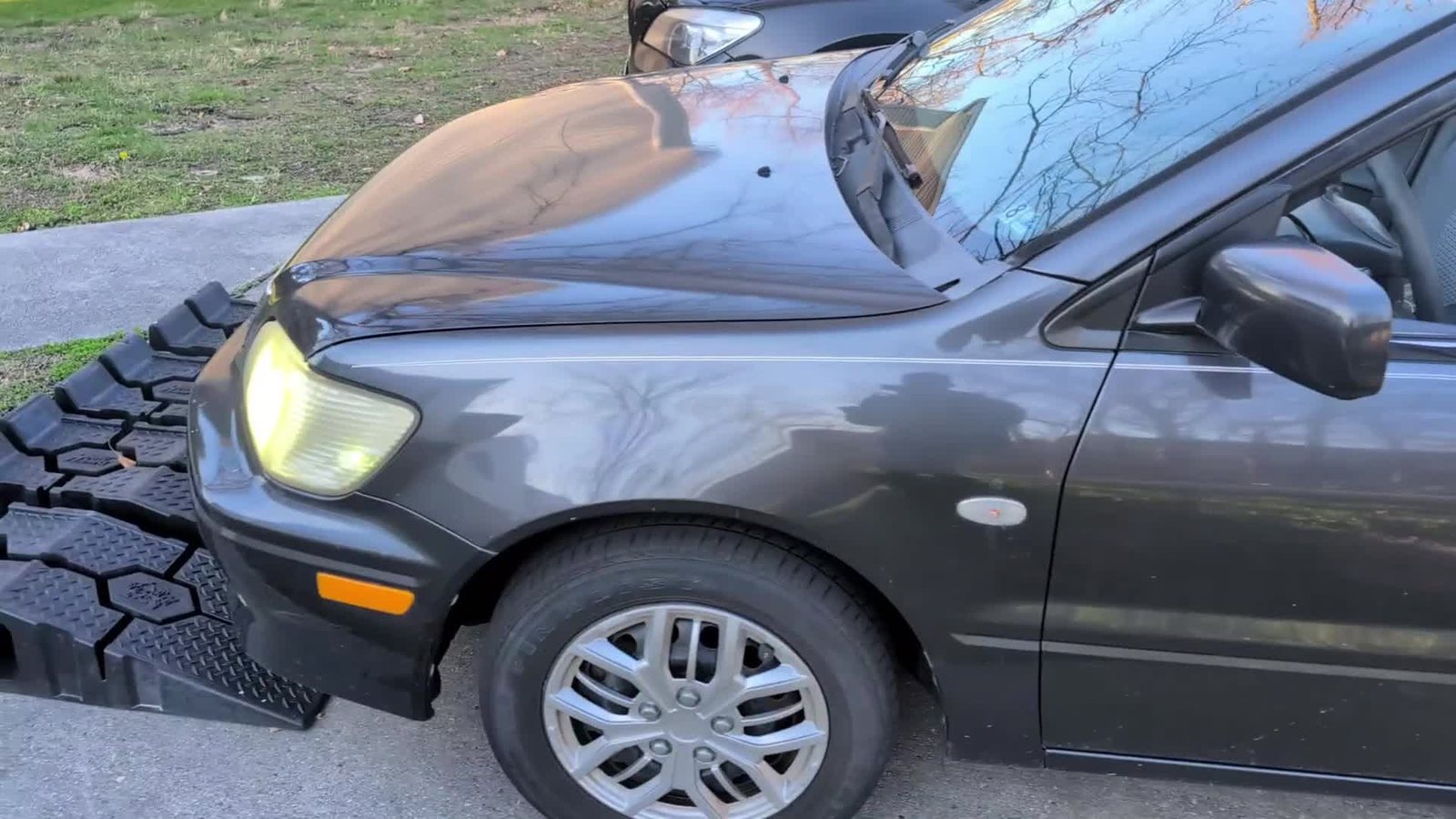
Part 2 ends with the whole system running live: “Alexa, start my car”, stop, unlock (with the voice PIN), lock, and “Alexa, open the car trunk”. Watch the demo from 11:27 →
Related Work
- Reverse-Engineering the Banvie 1 Remote Start & Keyless Entry Unit — how the key fob codes were found (5-part series; Part 5: injecting key fob codes via Arduino).
- Motorizing the Lancer's HVAC Blend Door — the same control board, plus how it's powered and installed (Part 1, Part 2).
- More builds on my YouTube channel: Dumbledore's Navy.